Understanding Student Data Requirements
The Individual Student Schedule Generator needs specific information about each student to create conflict-free, personalized schedules.
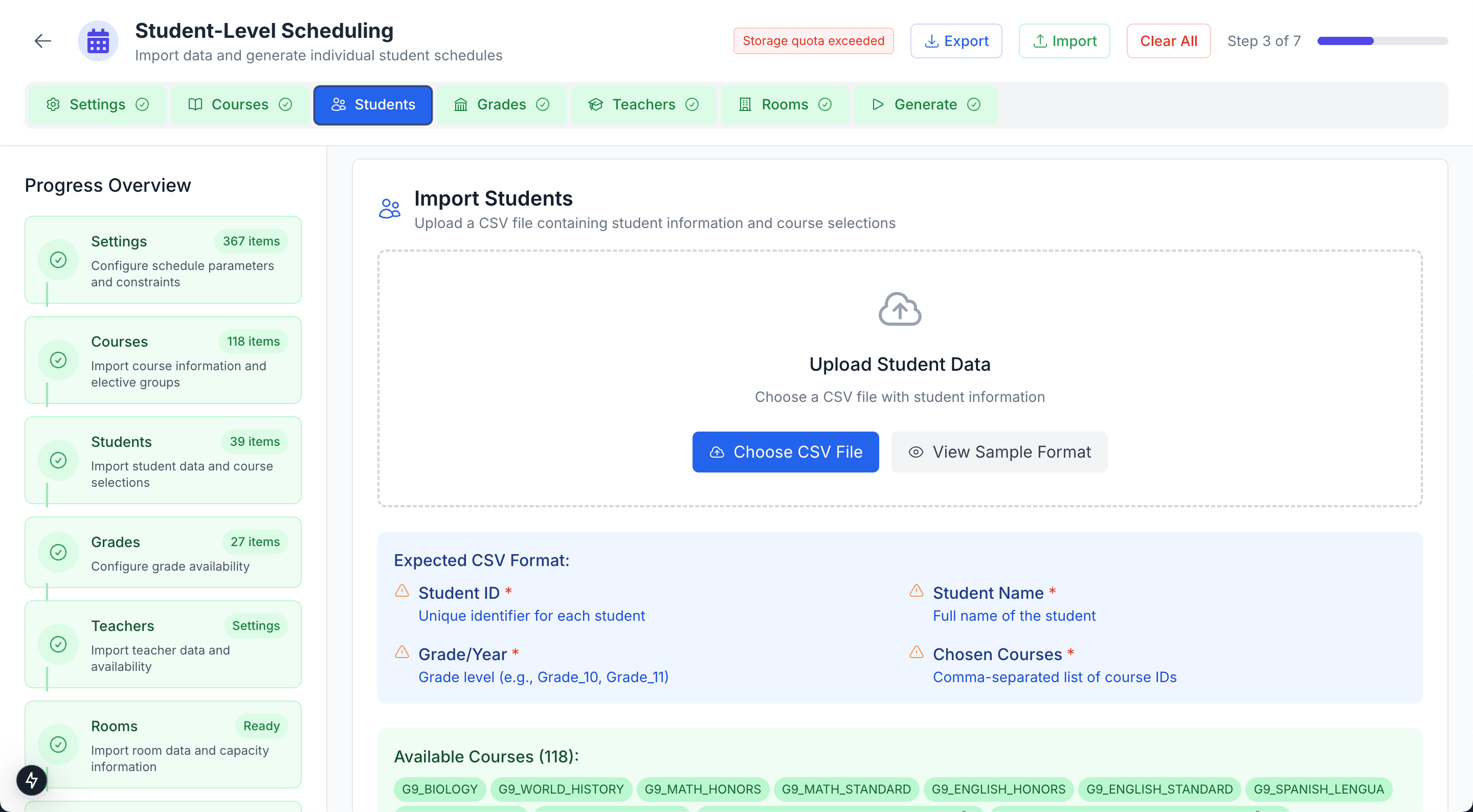
Students page showing options to add students individually or import from CSV
Getting Started with Students
The Students page allows you to manage students and their course selections. You can add students one at a time or import multiple students using a CSV file.
Key Actions:
- Add Student: Add individual students with their course requests
- Export: Download your current student data
- Add Students (Bulk): Import multiple students from CSV
Adding Students
Individual Student Entry
For smaller schools or when making specific updates:
- Click the "Add Student" button in the top right
- Enter student details (name, ID, grade)
- Select courses from your configured course catalog
- Save the student record
Bulk Import from CSV
For larger student populations, use the CSV import option:
- Click "Add Students" and select the import option
- Upload your CSV file with student data
- Map columns to the required fields
- Review and confirm the import
CSV Structure:
Student_ID,First_Name,Last_Name,Grade,Course_Requests
2024001,Sarah,Johnson,10,"MATH-101,ENG-ADV,BIO-LAB,ART-101"
2024002,Michael,Chen,11,"CALC-101,PHYS-ADV,CHEM-LAB,HIST-MOD"
2024003,Emma,Rodriguez,9,"MATH-BAS,ENG-101,BIO-101,PE-101"
Tip: Include student name and comma-separated course codes in your CSV. The system will validate course codes against your configured course catalog.
Essential Student Information
Student ID: Unique identifier for each student
- Use your institution's existing student ID system
- Ensure IDs are consistent with other school systems
- IDs must be unique - duplicates will be flagged
Full Name: Student's complete name as it should appear on schedules
- Include first name and last name
- Use consistent formatting across all records
Grade Level: Current academic grade or year
- Must match the grade levels defined in your configuration
- Used to validate course enrollment eligibility
Course Requests: Each student's selected courses
- Must match course codes from your configured course catalog
- Include both mandatory and elective courses
- The system validates that students meet any prerequisites
Import Validation
The system validates student data during import:
Automatic Checks:
- Unique Student IDs: No duplicate students allowed
- Valid Course Codes: All courses must exist in your catalog
- Grade Eligibility: Students must be eligible for selected courses
- Course Group Conflicts: No multiple selections from same course group
Data Integrity: Import validation errors must be resolved before proceeding. Review any flagged conflicts and correct the data before continuing.
Managing Course Demand
High-Demand Courses: The system automatically creates multiple sections as needed based on student requests and room capacity.
Low-Demand Courses: Courses with few student selections may need minimum enrollment requirements or alternative arrangements.
Special Considerations
Transfer Students and Mid-Year Changes
New Enrollments: Add individual student records with course selections. The system will fit new students into existing sections when possible.
Course Changes: Update individual student records as needed. Consider the impact on section enrollment numbers.
Data Export
Use the Export button to download your current student data. This is useful for:
- Creating backups before making changes
- Sharing data with other systems
- Reviewing student course requests offline
Next Steps
With student data successfully added and validated, click "Save & Continue" to proceed to the next step in your timetable setup.
Use "Back to Overview" if you need to return to the timetable overview page.
Quick Checklist
- All student records added successfully
- Course requests validated against course catalog
- No validation errors or course group conflicts
- Ready to proceed to next configuration step
Need Help?
If you have questions about managing students or importing data, click "Schedule a Call" in the Tips & Tricks panel to speak with a timetable assistant.